Designing an IPTV network
VLANs, multicast, and IGMP for IPTV-friendly UniFi setup
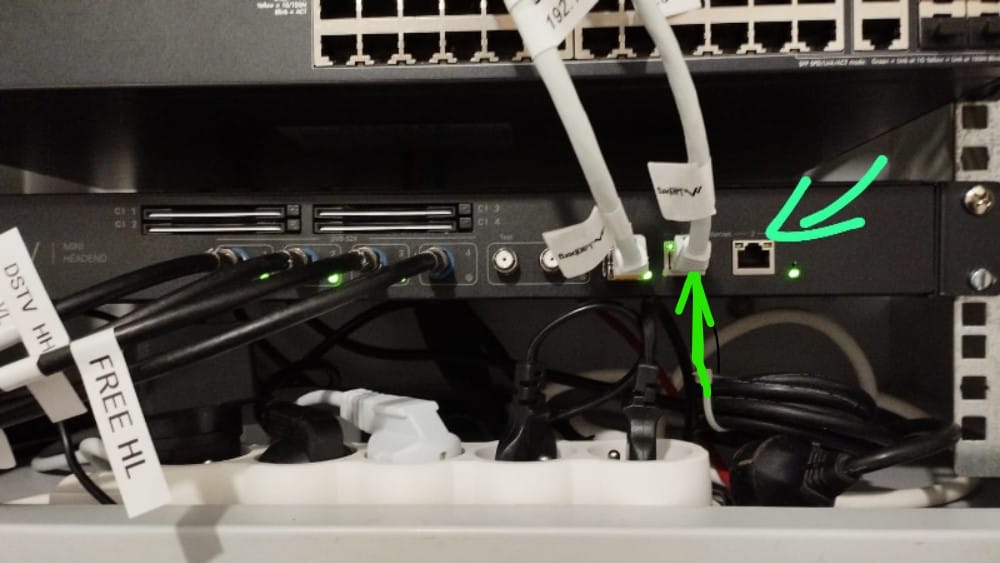
IPTV can be one of the most demanding services to run on your home or office network. Unlike Netflix or YouTube, which rely on unicast streams (one connection per viewer), many IPTV providers use multicast to efficiently deliver live TV channels. When it works, multicast saves bandwidth and scales beautifully. When it doesn’t, you get buffering, pixelation, or a complete lack of signal.
If you’re running a UniFi network and want smooth IPTV delivery, the key is understanding VLANs, multicast, and IGMP (Internet Group Management Protocol). In this post, I’ll walk through the concepts and give you a working recipe for an IPTV-friendly UniFi setup.
Why IPTV is different
- Each device gets its own TCP/HTTP stream. Easy, but bandwidth-heavy.
- The provider sends one UDP stream per channel. Devices “join” the stream via IGMP. Bandwidth stays flat, even with multiple viewers.
The challenge: if your switches and router don’t handle multicast properly, traffic can flood your entire network or fail to reach clients at all.
VLANs for clean separation
It’s good practice to segregate IPTV traffic into its own VLAN:
- Keeps IPTV isolated from normal internet traffic.
- Makes troubleshooting easier.
- Lets you apply firewall/QoS rules without touching the rest of your LAN.
Example setup in UniFi:
- VLAN 20 → IPTV
- VLAN 1 → Default LAN
- VLAN 30 → Guest WiFi
On UniFi:
- Go to Settings → Networks → Create Network.
- Name it “IPTV”, assign VLAN ID
20. - Set gateway/Subnet (e.g.
192.168.20.1/24). - Don’t enable DHCP unless required (some IPTV boxes expect static config or provider-assigned IPs).
Multicast & IGMP
- IGMP Snooping (switch level): Ensures multicast packets are only forwarded to ports where devices requested them. Prevents flooding the whole VLAN.
- IGMP Proxy (router level): Forwards multicast subscription requests upstream to the IPTV provider and routes multicast streams into the VLAN.
Without IGMP Snooping, every device on your VLAN sees all IPTV traffic — not scalable.
Without IGMP Proxy, your router won’t know how to get IPTV channels from your provider.
UniFi configuration step by step
1. Enable IGMP Snooping
- Go to Settings → Networks → Advanced Features.
- Toggle IGMP Snooping ON.
- This tells UniFi switches to forward multicast only where it’s needed.
2. Configure IGMP Proxy on the Gateway
- In the UniFi Network app, SSH into your UniFi Gateway (UDM/USG).
- Add or edit the
config.gateway.jsonfile with IGMP Proxy rules. Example:
{
  "protocols": {
    "igmp-proxy": {
      "interface": {
        "eth0": {
          "role": "upstream",
          "threshold": "1"
        },
        "eth1": {
          "role": "downstream",
          "threshold": "1"
        }
      }
    }
  }
}eth0→ WAN (upstream to your IPTV provider).eth1→ LAN/your IPTV VLAN.
Restart the gateway for changes to take effect.
3. Assign VLANs to switch ports
- IPTV boxes → access ports on VLAN 20.
- Uplink ports between switches → trunk ports carrying VLAN 20.
- Other devices → their respective VLANs.
4. Test with your IPTV box
- Plug in your IPTV box, assign it to VLAN 20.
- It should request a channel via IGMP → router forwards → provider sends multicast → box plays smoothly.
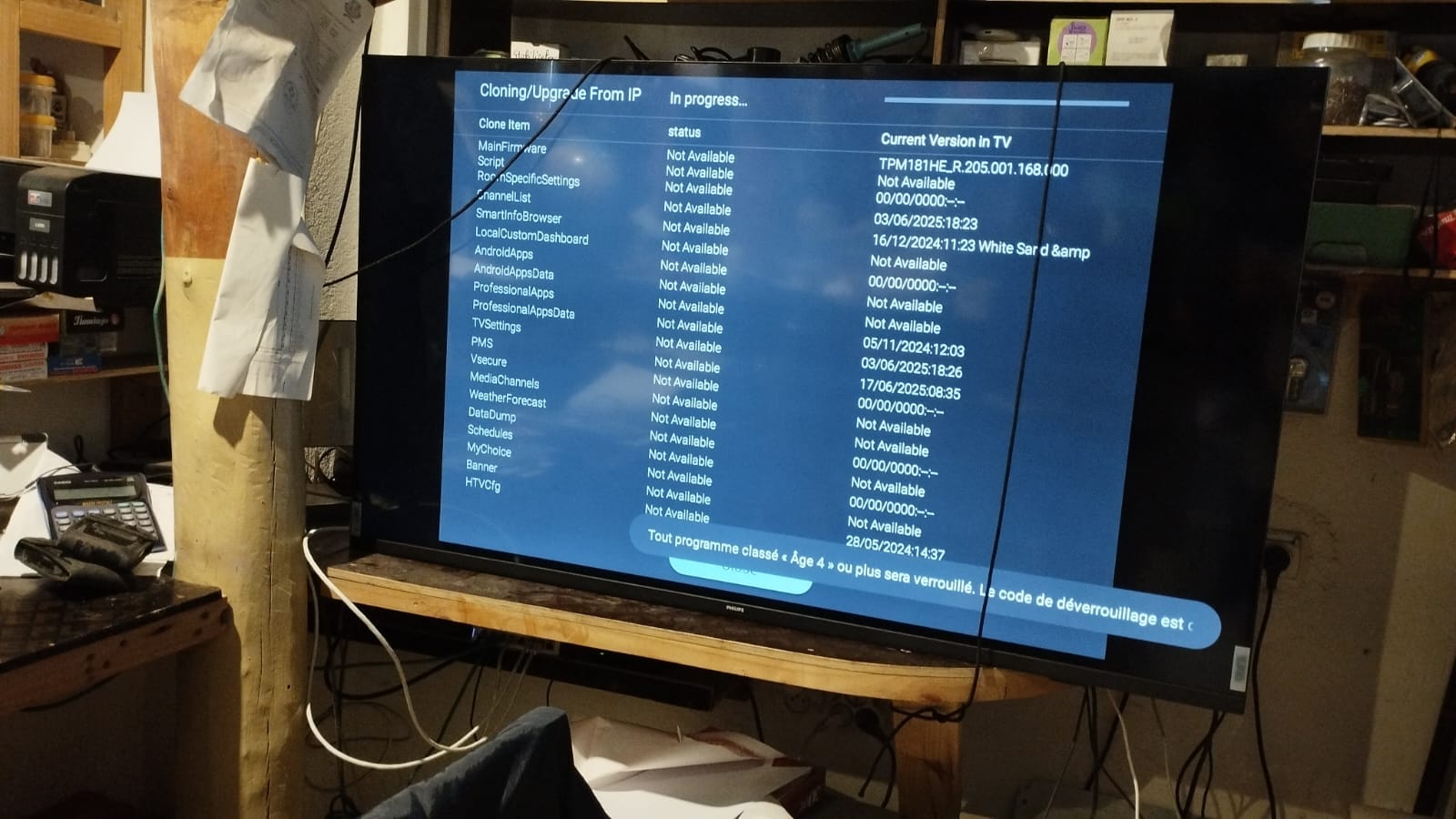
Testing and debugging
Useful commands:
- On the gateway:tcpdump -i eth1 igmp
→ See if IGMP joins/leaves are being sent. - On a Linux client in the IPTV VLAN:vlc udp://@239.255.1.1:5000
→ Test joining a known multicast stream.
Common problems:
- No stream: IGMP Proxy not configured correctly.
- Flooding entire LAN: IGMP Snooping disabled.
- Freezing/packet loss: Switch uplink not carrying IPTV VLAN, or insufficient QoS.
Performance tips
- QoS: If IPTV competes with heavy downloads, prioritize IPTV VLAN traffic.
- MTU: Keep default (1500) unless provider requires jumbo frames.
- Monitoring: UniFi controller shows traffic per VLAN/device. Watch for abnormal spikes.
Conclusion
With a dedicated VLAN, IGMP Snooping on your switches, and IGMP Proxy on your router, UniFi can deliver rock-solid IPTV. The network stays efficient, clients only see the streams they subscribe to, and you avoid flooding your LAN with unnecessary traffic.
IPTV might feel like “old school networking” compared to Netflix, but when configured properly, it’s elegant and efficient.